How to Find What Application I Recently Installed in My Mac

You can find the log of application installation with the following step. On your Mac, choose Apple menu () > About This Mac. Click “More Info…” button. On the right pane, scroll down and click “System Report…” button. In the Software > Installations section, you can see a list of installation softwares. Then you can easily sort the list by install date.

May 16, 2025

What Type of CPU Does My Mac Have

How do I know I have Apple silicon or Intel-based CPU chip ? On your Mac, choose Apple menu () > About This Mac. Look at the information in the window to determine what type of Mac you have: If you see an item labeled Chip, followed by the name of the chip, you have a Mac with Apple silicon. If you see an item labeled Processor, followed by the name of an Intel processor, you have an Intel-based Mac.

May 16, 2025

How to Do Screen Capture for Macos

macOS has built-in screen capture tools that allow you to take screenshots easily. Capture the Entire Screen Press Command (⌘) + Shift + 3 The screenshot is saved to your desktop (by default) or copied to the clipboard if you hold Control. Capture a Selected Area Press Command (⌘) + Shift + 4 Your cursor will change to a crosshair. Click and drag to select the - area you want to capture. The screenshot is saved to your desktop (or copied to the clipboard if you hold Control). Capture a Specific Window Press Command (⌘) + Shift + 4, then press Space Your cursor will change to a camera icon. Click on the window you want to capture. The screenshot will be saved with a shadow (Hold Option while clicking to remove the shadow). Capture Touch Bar (if available) Press Command (⌘) + Shift + 6 This captures the Touch Bar and saves it as an image.

May 16, 2025

How to Check Ios Version of My Iphone

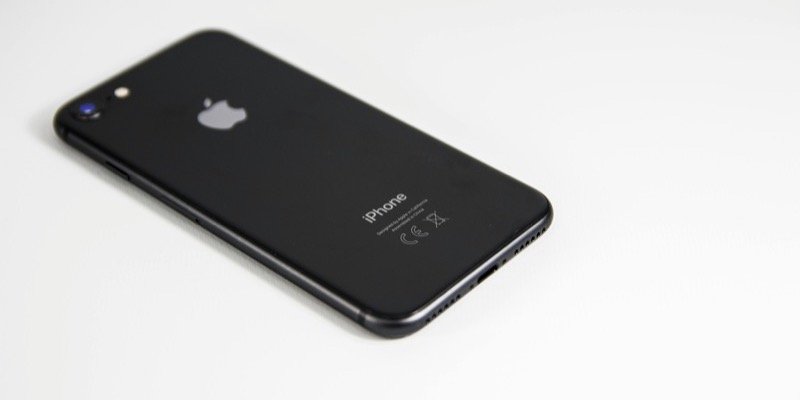
To check the iOS version of your iPhone, follow these steps: Open the Settings app on your iPhone. Tap on “General” Select “About” Look for “iOS Version” It will show something like “iOS 17.3” or “iOS 18.0” (depending on your installed version).

May 16, 2025

How to Check My Macos Version

To check your macOS version, follow these steps: Click on the Apple menu () in the top-left corner of your screen. Select “About This Mac.” A window will open showing your macOS version at the top (e.g., “macOS Sequoia 15.0”).

May 16, 2025

How to Set Wallpaper in Macos Sequoia

To set a new wallpaper on your Mac running macOS Sequoia, follow these steps: Open System Settings: Click on the Apple menu () in the top-left corner of your screen. Select “System Settings” from the dropdown menu. Navigate to Wallpaper Settings: In the System Settings window, click on “Wallpaper” in the sidebar. Choose a Wallpaper: You’ll see a variety of wallpaper options categorized under sections like “Dynamic Wallpapers,” “Light and Dark Wallpapers,” and “Desktop Pictures.” Click on any image to preview and set it as your desktop background. Add Personal Photos: -To use a personal image, you can drag and drop a photo directly into the Wallpaper settings window. Alternatively, click the “Add Folder or Album” button, navigate to the folder containing your desired images, and select it. This will add the folder to your wallpaper options, allowing you to choose any image within it.

May 16, 2025